| Main Screen | Panel |
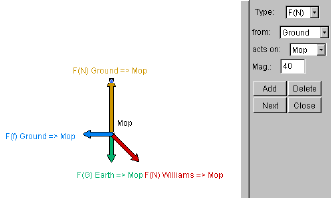
Working from the main screen
Creating an object: move the cursor to the object's start position (e.g. tail of the vector). Press the mouse button, and while holding it, drag it to the position the object should end. Release the button. If you cannot create an object, you may already have the maximum allowed for that particular exercises.Moving an object: Move the cursor over the object near the start position (tail of a vector, base of a bar). Press the mouse button and drag the object to where you want it. Note: in some exercises the ability to move one or more objects is disabled.
Changing an object: To change the displacement or length of an object, place the cursor over near the end (tip of vector, end of bar). Press the mouse button and drag so the object ends to where you want it to. Note: in some exercises the ability to change displacement of one or more objects is disabled.
Deleting an object: To remove an object, click on it so it is highlighted. (This will usually result in two small squares or "ears" appearing at the start and end positions.) Then press the DELETE key. Note: in some exercises the ability to delete one or more objects is disabled.
Working from the panel
The panel provides a way to directly see/edit values of objects. It is not available in all exercises. If it is available, a vertical bar will be visible on the right-hand side of the applet.Opening the panel: To open the panel, click on the vertical bar on the right-hand side of the applet, OR double click on an object in the screen. The second method will automatically make the object you clicked on the selected one for editing.
Closing the panel: To close the panel, click on the vertical bar on the left-hand-side of the panel OR click the button that says "Close."
Creating an object: Click on the button that says "Add."
Selecting an object: Click the "Next" button until the desired object is selected OR click on the object in the main screen.
Moving an object: If text boxes describing the starting position of the object are visible, change the values in the boxes.
Changing displacement of an object: If text boxes describing the displacement of the object are visible, change the values in the boxes.
Changing labels of an object: If text boxes with labels are visible, you may change their values, selecting from a list if a list is provided, or typing the label if it is not.
Deleting an object: To remove the currently
selected object, click the "Delete" button.