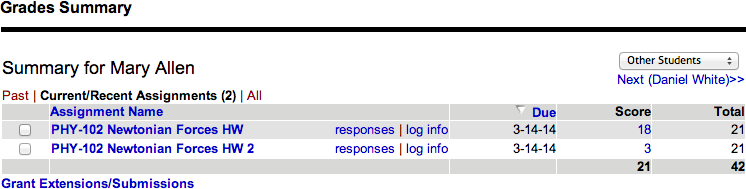
The Grades Summary page is a snapshot of one student's progress on assignments right now.
- Prerequisites
- View All Assignment Scores for a Single Student
|
Heading |
Description |
|---|---|
| Assignment Name | The name of the assignment, with links to view the student's answers and an activity log. |
| Due | The assignment due date. |
| Score | The student's total points earned so far. |
| Total | The total points that can be earned for the assignment. |
- A red asterisk (*) beside a score indicates the score has been changed by the instructor.
- A red asterisk beside the due date indicates an extension was granted.
- An answer key icon (
 ) beside a score indicates the student has seen the answer key for the whole
assignment per your assignment settings.
) beside a score indicates the student has seen the answer key for the whole
assignment per your assignment settings. - The last row of the table summarizes the student's earned points and the available points for all assignments that are shown.
Actions
You can perform a number of activities from the Grades Summary page.
| To do this | Do this | More information |
|---|---|---|
| See other assignments |
At the top of the table, click Past, Current/Recent, or All. |
|
| See other students | At the top of the table:
|
|
| Sort the table | Click a column heading. |
A sort arrow indicates the current sorting for the sorted column. |
| See your student's answers for an assignment | Click the assignment name or responses. | View a Student's Answers for an Assignment |
| See a log of your student's activity for the assignment | Click log info. | View Student Access Logs |
| Give your student more time or submissions to complete assignments |
|
Grant Extensions |
| Excuse your student from completing an assignment | Click the assignment score. | Excuse Students from Assignments |
| Change your student's score for an assignment | Click the assignment score. | Adjust or Override Scores |